From Google Docs · WriteIDE 0.7.3
Download the Doc, then import the file. There is no Google login.
Download a .docx or Markdown copy from Google Docs, then bring it into WriteIDE 0.7.3. Review its chapters and open your story, or keep drafting in Docs while WriteIDE tracks continuity. There is no Google account connection or live sync.
Available in WriteIDE 0.7.3
What WriteIDE does with that manuscript.
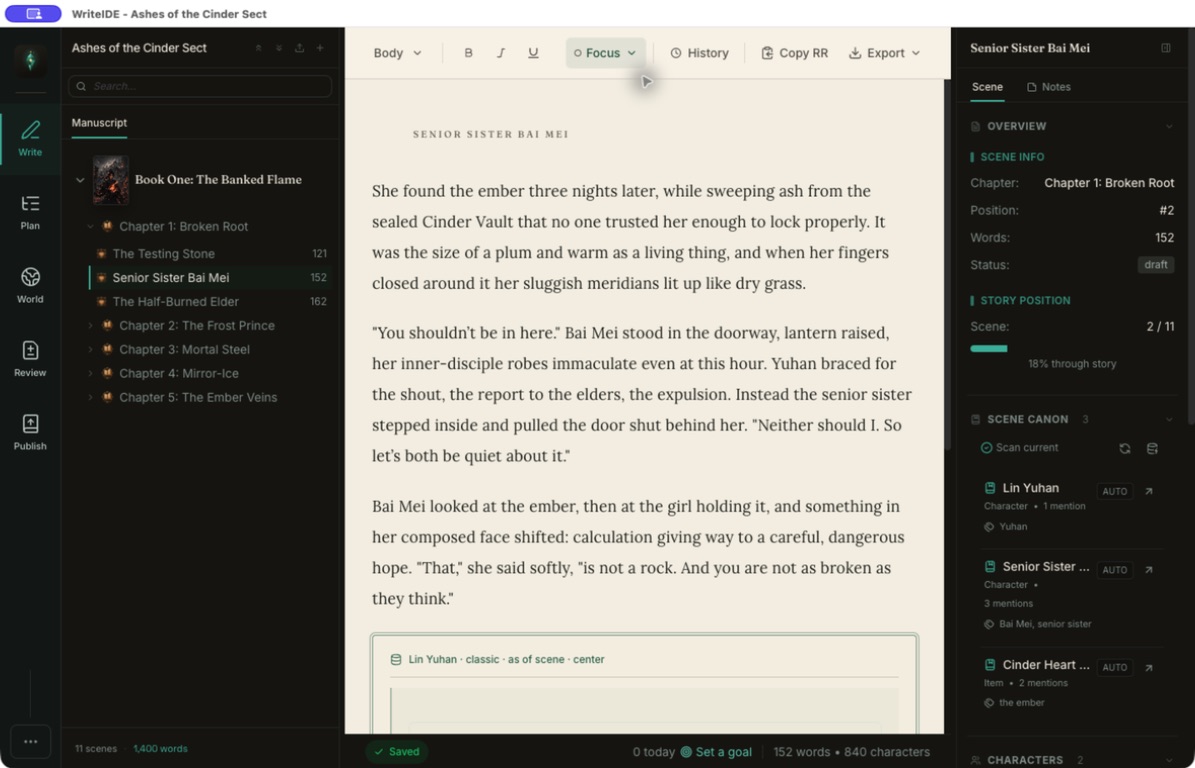
- Import the downloaded file
From Google Docs, use File, Download, Microsoft Word (.docx) or Markdown. WriteIDE imports that file the same way it imports any other .docx or .md.
0.7.3 - Keep drafting in Docs
Choose Track a story written elsewhere, import the copy or build a chapter skeleton, and record progression on Story Overview while the live draft stays in Docs.
0.7.3 - Clean one chapter in the browser
The Royal Road HTML cleaner on this site formats one pasted chapter. It does not import a book or create a WriteIDE project; use the desktop import path for that.
0.7.3 - Stay local-first
After downloading the copy from Docs, the import happens on your computer. WriteIDE does not keep a Google Drive connection.
0.7.3
Not in the public release
What this path does not do.
- A Google Docs API or account link
There is no Sign in with Google, no Drive picker inside the app, and no live sync with the Doc you left in the browser.
Not available - Treating a paste as a whole-book import
Pasting into a browser tool formats one chapter. Importing a downloaded file is what creates chapters, scenes, and a tracker project.
Not available - Cloud backup of the imported project
The copy is saved in WriteIDE’s local data. Cloud backup is planned and optional, not part of the public 0.7.3 import path.
Not available
Local-first
How to do it on this computer.
- 01 · Download the Doc as .docx or Markdown
Do this in Google Docs first. WriteIDE reads files, not a Google URL.
01 - 02 · Download WriteIDE 0.7.3
Open the desktop app. No WriteIDE account is required.
02 - 03 · Import the file or start a tracker-only project
Choose Bring a manuscript on the project library or in New Project. Choose Track a story written elsewhere if Docs remains your editor.
03 - 04 · Review the split, then open your story
Confirm the chapters and scenes, then open the first imported scene. In tracker-only, a file with fewer than two detected chapters offers a skeleton instead; establish that baseline, then record one change in Story Overview.
04