WriteIDE 0.7.6: faithful exports, clearer screens, fewer lost words
WriteIDE 0.7.6 brings more faithful exports, quieter panels, and clearer ways to get back to your writing. A PDF should keep the letters in a character's name and the symbols in a status screen. If it cannot print a character, you should be told before you hand the file to a reader.
I also tightened the gap between typing and crash recovery, made Back and Forward remember your place in a scene, and replaced more technical labels with words that explain what a button does. The smaller fixes are at the bottom.
PDFs that keep your letters and stat symbols
Manuscript PDF export now embeds Noto fonts. Cyrillic, Greek and Central-European accented text print correctly instead of turning into garbled text. Bold, italic and code text use bundled fonts too, so a name does not become unreadable just because you emphasized it.
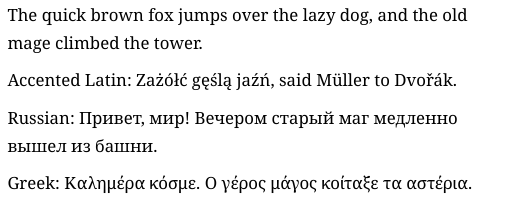
Common status-screen symbols print properly as well: arrows, filled and empty stars, check marks, greater-than-or-equal and less-than-or-equal signs, not-equal signs, infinity and square roots. A line such as HP ≥ 100, MP ≤ 40, DEF ≠ 0 keeps its meaning in the exported manuscript.
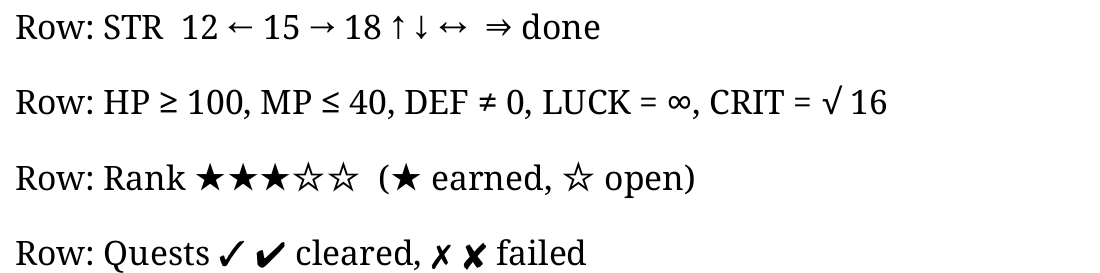
These changes apply to the PDF choice in Export Manuscript. Open the exported file to check your text and status screens before sharing it.
When a character cannot be printed
If none of the bundled fonts covers a character, the PDF puts a visible placeholder such as [U+05E9] where it belongs. The export dialog says Export saved with warning, counts the replaced characters, and lists examples with their character codes. The picture below shows a warning for Hebrew letters, which are not covered yet. The file is saved, and you can open it from the same dialog to inspect the affected passages.
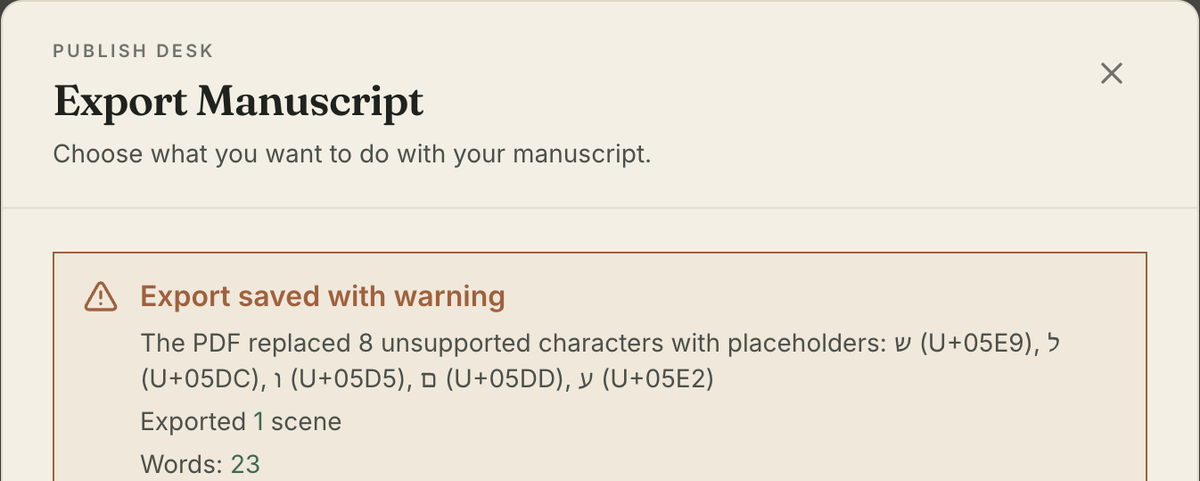
Right-to-left scripts, including Hebrew, as well as Chinese, Japanese, Korean and emoji are still outside this PDF release's coverage. They still print as visible placeholders with an export warning. If your manuscript needs them, this PDF export is not ready to reproduce those passages. The EPUB improvement below is separate from PDF font coverage.
Full borders and quieter panels
I replaced coloured left-edge stripes on export results, warnings and many other panels with full borders. The PDF warning above uses that treatment, with a warning icon and words that explain what happened.
This treatment also reaches places such as Versions guidance, equipment notices and quest dialogs. Quoted passages in the editor use indentation and muted text without the coloured stripe. The manuscript tree's keyboard focus indicator surrounds the tree rather than adding a bar down its left edge.
EPUB and Markdown keep the text you wrote
EPUB export no longer drops emoji and rare characters above the basic Unicode range. Those characters stay in the ebook's text; how they look still depends on your e-reader's fonts.
Markdown export now protects text that could otherwise be mistaken for an HTML tag or a named character entity. If you write <status> or the literal text © in your prose, the export escapes it so a Markdown reader displays what you wrote rather than hiding a tag or substituting a copyright symbol. The extra backslashes belong to the Markdown file's formatting, not the displayed sentence.
Inventory removals appear in character History
Removing an item from a character's inventory now leaves a record, and the character's History shows it as Item removed: …, with the item name and quantity. You can see what you removed instead of finding only an empty space in the inventory.
Assigning or removing a skill also leaves a history record. These are records of your editing actions, without a scene link; they are not changes inserted into the story's timeline. Inventory-removal records appear after changes that have a story position, and they do not offer Link to scene.
More recent typing available after a forced close
Crash recovery already offered unsaved words back when you reopened a scene. I shortened the wait before recent edits are sent to the local recovery journal: typing now queues that copy within a frame instead of waiting for the old periodic interval. If WriteIDE is forcibly closed while you are writing, more recent typing can be available to recover.
Reopen the scene and use the existing Keep or Discard choice for recovered words. If the saved scene has changed since the recovery copy was made, the words are offered as a copy so they do not overwrite newer writing.
This improves recovery between normal saves; it is not a guarantee that every last keystroke survives every interruption. Keep using the Saved indicator to confirm a normal save.
Back and Forward return to your place in a scene
When you leave a scene and come back with Back or Forward, WriteIDE restores the caret or text selection you left there and scrolls it into view. You can check another scene and return to the sentence you were editing.
The remembered place lasts for the current app session and is restored only when the scene text still matches. If the text changed, including through recovery, WriteIDE opens it normally rather than applying an old selection to different words. Use Cmd/Ctrl+[ and Cmd/Ctrl+] to move through your viewing history.
Versions explains how to recover earlier writing
Versions now uses View details, Show file and Delete labels beside its icons. The details dialog says Details and Reason saved, and a version made during an app update is labelled App update.
I also removed the unsupported project-restore action and made the available recovery path easier to follow:
- Open Review › Versions and view a saved Version.
- Choose a chapter and Prepare Markdown.
- Use Go to Ready to post, then find Prepared chapters to retrieve and check the text.
- Copy the passages you need into your manuscript. After copying Markdown, Return to scene appears when you have a scene open.
Replacing an existing project with a Version or backup file is not available yet. Preparing a chapter gives you earlier text to copy; it does not roll back project data or history, or bring back a deleted character. Keep your current project; deleting it is not a rollback method.
Plainer choices while you write
The character sheet now explains that values reflect the selected point in your story, that calculated values come from a formula, and that equipment can affect totals. Formula-based stats say Calculated, with a Calculated using tooltip. When you edit a stat inline, labelled Save and Cancel buttons make the next step visible.
On Overview, an empty cast offers Create a character directly. The explanation describes seeing characters change through the story. Starting a tracker likewise describes recording stats and following their changes from chapter to chapter.
Import Manuscript explains that you review detected chapters and scenes before confirming, and that nothing changes until you confirm. For Google Docs, it tells you to download a supported file first. A file that is too short gets a plain explanation of what to add before trying again.
Export Manuscript leads with what you want to do: edit a formatted manuscript in Word, share a manuscript ready to read or print, read it on an e-reader, or keep a copy to bring back into WriteIDE with editable blocks. The format name stays beneath each choice, and the longer explanation of formats and images is under Details.
Fixes and refinements
- A tab in PDF prose no longer corrupts nearby letters. It is treated as spacing.
- Quest objective updates stay together. Progress, its history record and the quest's completion percentage are saved together; a failure leaves none of them half-updated.
- One shortcut reference. Help, Settings and the keyboard overlay use the same list, with keys for your platform and context notes.
- Settings labels have room. Navigation labels wrap where text labels are shown, and UI density is now Spacing.
- What's New keeps its picture offline. The dialog opens its picture from the app itself.
- Troubleshooting details stay local. A local event log records crashes, errors and operation timings. Its allowed fields exclude manuscript text, project titles and personal file paths, and it has no automatic upload path.
- Copy speaks in my voice. In-app support wording now refers to me as the solo author.
WriteIDE remains free, local-first, and account-free. You can find the current public version on the download page.
The first stable release since 0.7.5, and 227 changes deep. I went looking for every way WriteIDE could lose an author's words and closed the ones I found. Then I gave the app a look of its own: warm paper on a dark desk.
21 min readWriteIDE 0.7.7 brings the whole writing workflow togetherCheck a character at the right point in your story, preview the chapter you mean to post, and get back to the sentence you were writing. WriteIDE 0.7.7 also improves recovery, Word exports, and Quest Board exports.
10 min readSometimes things don't always go as planned: 0.7.4, the release that never wasWriteIDE 0.7.4 never shipped. I skipped a version number, left a page promising it, and everything prepared for it landed in 0.7.5. Sorry!
2 min readNotes worth sending
Release notes when a version ships, plus Lab notes and guides. No weekly filler.